Why Revit Versions Are Not Backward Compatible and What to Do
If you work in Revit, you may have faced this: a colleague or contractor sends a project file created in a newer Revit version, but you have an older release installed. Then you discover that opening it…
Contents
A problem familiar to every designer
If you work in Revit, you have probably encountered this situation: a colleague or contractor sends a project file created in a newer Revit version, but you have an older version installed. You discover that you cannot open it. Unlike AutoCAD, where a drawing can be saved in an older DWG format, Revit does not support backward compatibility.
Searching for “how to open a Revit file in an older version” brings up dozens of forum discussions, but no genuine solution. Let's examine why this happens, what workarounds are available, and how designers handle the issue in practice.
Why doesn't Revit support backward compatibility?
Revit is built on a complex BIM architecture. Each file is not simply a drawing but an entire database containing models, parameters, relationships, and families. Annual Revit releases introduce significant changes: new features, improved algorithms, and API enhancements. These changes affect the underlying file format, making it incompatible with earlier versions.
Revit only works “forward.” This means:
a file created in Revit 2026 cannot be opened in Revit 2025 or 2024;
each new Revit version changes the file structure;
reverting the format without risking errors or data loss is therefore technically impossible.
Because the model database is so complex, Autodesk's developers deliberately chose not to implement backward compatibility.
What workarounds are available?
There is no direct method, but designers use several workarounds, each with limitations:
1. Export to IFC
This open format is designed for exchanging BIM data. You can export a Revit 2026 model to IFC and import it into an older version.
- Advantages
- geometry and basic parameters are preserved.
- Disadvantages
- custom settings, views, annotations, and complex relationships are lost. It is suitable for coordination, not full model editing.
2. Export to Navisworks (NWC/NWD)
The Navisworks format is useful for clash detection or visualization, but it does not allow model editing in Revit. It is more of a viewing tool than an editing solution.
3. Third-party plugins and scripts
Unofficial solutions built on the Revit API attempt to “downgrade” file versions, but they are unstable and often cause errors.
4. Autodesk cloud services
BIM 360 and Autodesk Construction Cloud let teams share models, but editing still requires a compatible Revit version. They support coordination without solving the underlying problem.
Ultimately, these methods share a drawback: you either lose some data or risk unstable performance.
When does Revit version incompatibility become a problem?
Compatibility issues become particularly noticeable in real projects. Here are the main scenarios:
1. Within a company
- Mixed versions
- Medium and large companies (20+ employees) often use different Revit versions. For example, one team may use Revit 2024 for older projects while another has moved to 2026 for new work. According to Autodesk Community, around 30% of companies encounter this situation.
- Long-term projects
- Projects lasting 2–3 years typically standardize on a specific Revit version. Upgrading software mid-project can cause problems.
- Frequency
- According to LinkedIn and Reddit surveys, 25–40% of cases involve 2+ Revit versions being used within one company, particularly in MEP design.
2. Working with contractors and partners
Exchanging files with external project participants is another common challenge:
- Different contractor versions
- An architect using Revit 2025 sends a model to an engineer using 2024, and the file will not open.
- International projects
- Different upgrade cycles explain the issue.
- Result
- Version incompatibility causes problems in 50–60% of projects involving multiple participants.
How do companies minimize the problem?
- Companies establish processes to avoid disruption
- Standardizing versions
- A single Revit version is selected at project kickoff and used through completion. This is standard practice for long-term projects.
- Phased upgrades
- Large companies upgrade gradually, keeping separate workstations for older versions. The transition may take 3–6 months.
- Using cloud platforms
- Services such as Autodesk Docs help coordinate work but do not solve cross-version editing issues.
Even so, these steps do not always work, especially when external teams use different software versions.
Tools for addressing compatibility: the role of MagiCAD
Specialized add-ons can help designers, particularly in MEP (mechanical, electrical, and plumbing), work around some Revit limitations. A leading example is MagiCAD, a plugin for Revit and AutoCAD that streamlines building systems design.
MagiCAD helps address compatibility by supporting three Revit versions at once: the current version and the previous two. For example, MagiCAD 2026, released in June 2025, works with Revit 2026, 2025, and 2024.
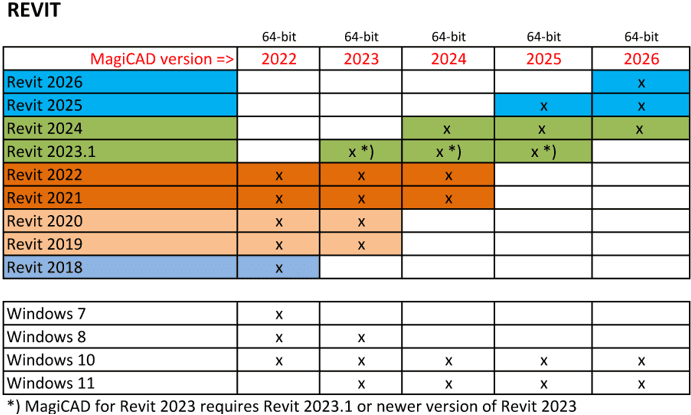
- This provides several benefits
- Team flexibility
- You can use MagiCAD on projects involving different Revit versions without losing access to new features and updates.
- Reliable data exchange
- Workarounds such as IFC become less necessary because MagiCAD provides integration within Revit.
- Access to improvements
- Even if you stay on an older Revit version, MagiCAD lets you use new tools, from calculations to equipment libraries.
Beyond cross-version support, MagiCAD's main value is accelerating workflows through automated calculations, ready-made databases, and optimized processes.
Conclusion: how to work with Revit with fewer problems
Revit's lack of backward compatibility is a fundamental limitation built into the software architecture. You cannot open a Revit 2026 file directly in Revit 2025, and workarounds such as IFC, Navisworks, or third-party scripts involve data loss or instability. To minimize issues, it is important to:
Standardize the Revit version at project kickoff.
Use cloud platforms for coordination.
Use add-ons that provide greater flexibility.
Want to know how MagiCAD can help?
For MEP designers, MagiCAD for Revit not only addresses version compatibility but also improves productivity.
To learn more about MagiCAD, request a trial license, or get advice, contact us via whatsapp.
CAD.kz - an authorized supplier of design software