
What to Know About Accessing Previous Autodesk Versions
Available previous versions depend on whether a customer has a subscription or an educational license. You do not need to uninstall the current version to install an earlier one.
The previous versions available for download depend on whether the customer has a subscription or an education license. You do not need to uninstall the current version to download and install an earlier one.
Software versions released within the past three years. The list of available previous versions is determined by the subscription type—an Autodesk 1-year or 3-year subscription.
Although previous version rights let you install and use certain earlier versions along with the latest version, the total number of licenses in use must never exceed the number of current licenses.
For example: If you have a subscription for 3 AutoCAD licenses, you may install and use the current version and any available previous versions, provided no more than 3 licenses are in use simultaneously—the total covered by the subscription. The same applies to previous version use under a perpetual license subscription.
Autodesk provides technical support for products included in the applicable subscription or perpetual license subscription list.
All available previous versions can be downloaded from Autodesk Account.
Subscribers with license access can download a previous version from their Autodesk Account. No separate license request is needed.
In some cases, reactivation is all that is required.
When a version is removed from the list of available previous versions, Autodesk no longer provides physical media or file download links, even if you previously licensed, installed, or used that version. Previous version rights end when the subscription expires or is canceled for any reason. After expiration, all previously licensed, installed, and used versions are no longer authorized for use and must be uninstalled.
How to download previous versions of Autodesk products:
Software versions released within the past three years
1.Sign in to Autodesk Account at manage.autodesk.com.
2.Find the software under “Products and Services” and click “View Downloads.”
Note. For industry collections or AutoCAD including specialized toolsets, click “View Items” to download individual products.
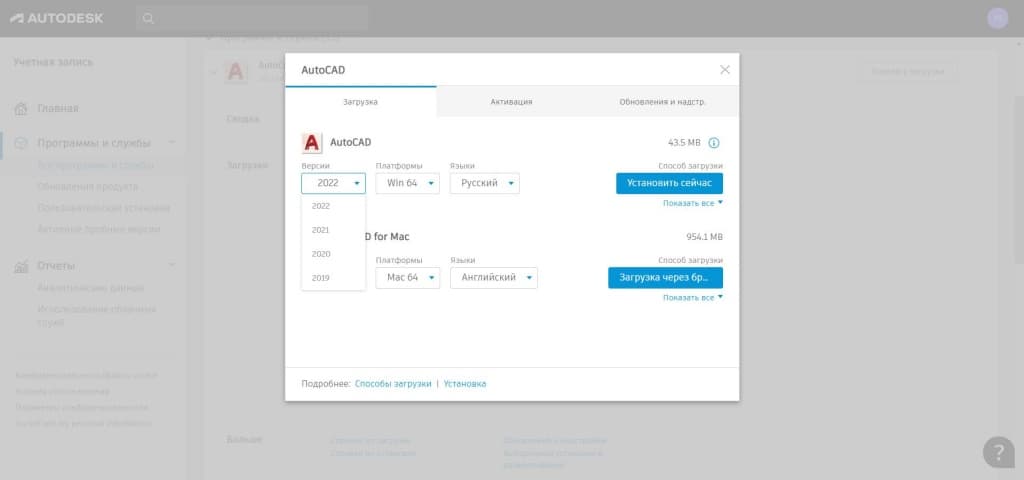
3.Select the earlier release from the “Version” menu and download the software.
Software versions released three to five years ago
Request downloads of older versions through Autodesk Virtual Agent (AVA).