
How to Export an Autodesk Fusion Model for 3D Printing
You can export STL files through File → Export or the 3D Print tool. These methods offer different mesh generation settings and support several formats:
Autodesk Fusion offers several ways to export STL and other file formats for 3D printing. These methods let you control polygon mesh quality, choose the required format, and integrate with slicer software. Users can export individual parts or assemblies, adjust mesh settings, send files directly to a slicer, or generate ready-to-use G-code. Below are the main methods for exporting models from Autodesk Fusion for 3D printing.
Different ways to export STL
STL files can be exported through File → Export or the 3D Print tool. These methods provide different mesh generation settings and support several formats:
STL (binary and ASCII);
3MF;
OBJ.
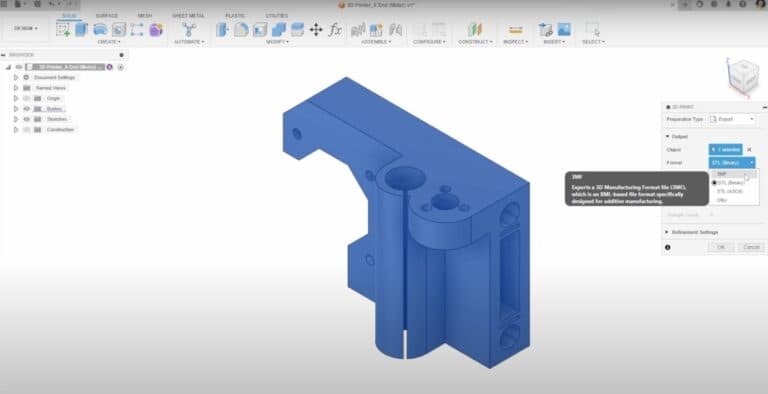
Adjusting mesh settings
During export, you can adjust mesh quality from medium to high. This is especially important for parts with complex geometry and curved surfaces. Higher quality increases detail but also file size. Custom mesh settings are available to balance quality and slicer compatibility.
Direct slicer integration
The 3D Print tool sends a prepared file directly to slicers such as Bambu Studio or PreForm, automatically opening the software with the model. You can also add your preferred slicer to the list.
Exporting assemblies
You can export assemblies in two ways: save the entire assembly in one file; or save each body as a separate file, which is useful for multimaterial or full-color printing.
Saving as a mesh from the Model Browser
In the Model Browser, right-click a component and select Save as Mesh. The same quality settings are available as for a standard export. Export from the Manufacture workspace
In the Manufacture workspace, you can select a 3D printer model and material, then generate additive toolpaths with simulation and post-processing to produce a ready-to-use G-code file.
Advanced toolpath generation
Manufacture supports precise model positioning, complex print toolpaths, and simulation. This is particularly useful for users who want to produce G-code directly without a conventional slicer.
Source: https://www.autodesk.com/
Want to get the most out of Autodesk Fusion for 3D printing?
Cad.kz offers:
- Official Autodesk licenses.
- Software selection and implementation consulting.
- Autodesk Fusion courses and training.